Wondershare PDFelement for Windows Review: The Practical PDF Workbench
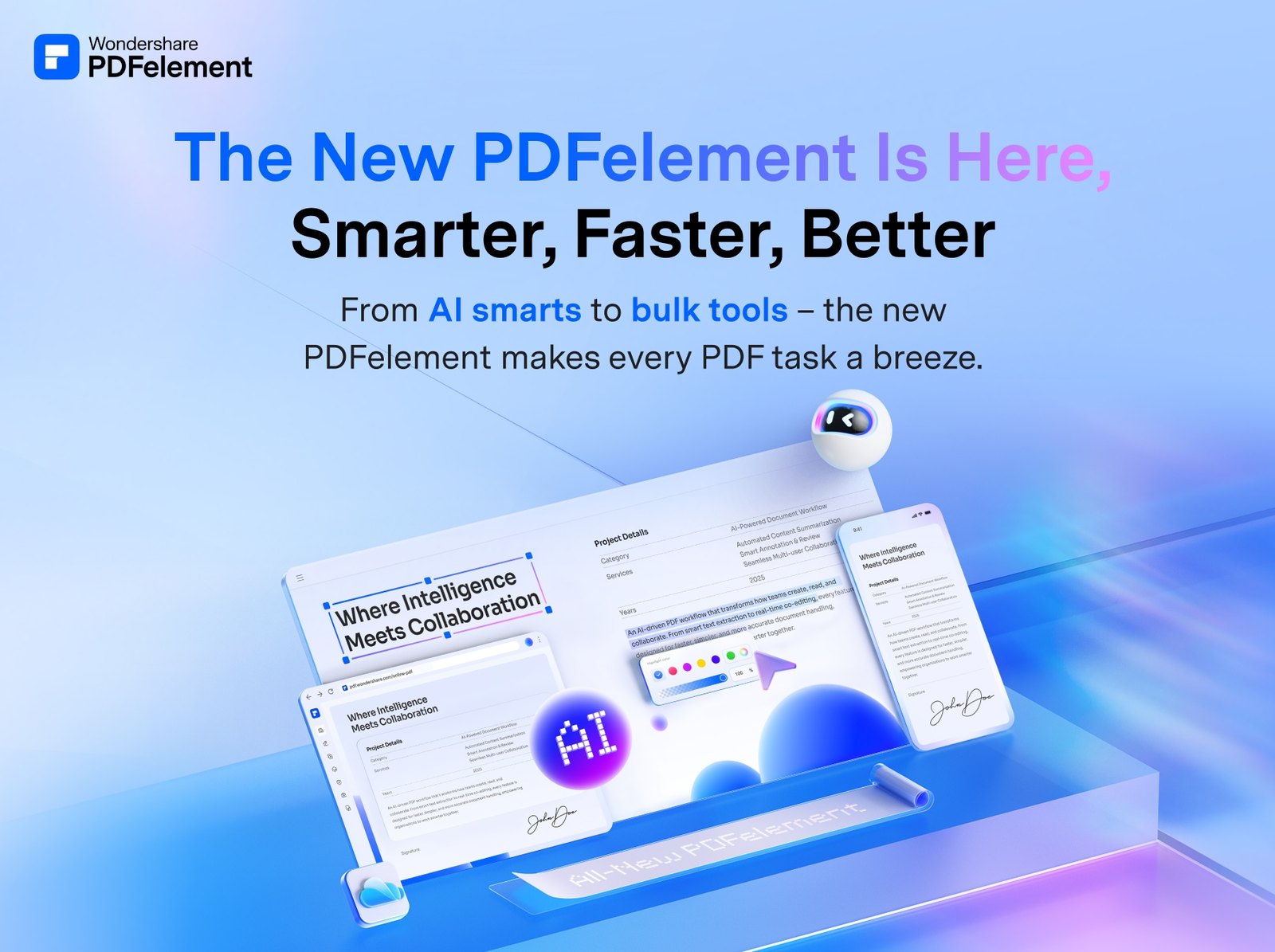
If you are tired of juggling separate tools for editing text, converting files, and signing documents, Wondershare PDFelement for Windows is built to handle all of that in one desktop application. It sits squarely in the "all-in-one PDF editor" category, targeting users who need to modify existing PDFs without paying for a full enterprise suite. The interface is designed to be approachable, grouping core actions like editing, converting, and OCR into a single workspace rather than forcing you to switch between different modules. For the average Windows user dealing with contracts, reports, and forms, it offers a direct path from a read-only PDF to a fully editable document.
Quick Answer
| Best for | Windows users who need a single app to edit, convert, and sign PDFs without a complex learning curve. |
| Skip if | You require deep, layout-perfect typesetting control or are locked into a strict Adobe-centric enterprise workflow. |
| One line | A capable, multi-tool PDF editor for Windows that prioritizes ease of use over granular design controls. |
Swipe sideways to compare →
What actually changes the buy is fit, what you should skip, and which tradeoffs show up after week one — not a longer spec sheet. If you already know the job, see current options while you read the criteria.
What the Official Page Lists
The official product positioning for Wondershare PDFelement for Windows highlights its role as an "Easy PDF Solution to Create, Convert, Edit PDF." While the brand maintains a broad software lineup, the specific focus for this Windows SKU is on streamlining common document tasks.
Because specific version numbers and granular feature limits (such as page count caps or file size limits) can vary between the Free, Pro, and Business editions, it is worth verifying the current tier limits on the brand’s licensing page before purchasing. The core promise remains consistent across tiers: a desktop-first experience that handles the heavy lifting of PDF manipulation without requiring cloud-only dependencies. Confirm details on the current product page.
What Reviewers Say
Reviews from YouTube say this about the Wondershare PDFelement for Windows.
On YouTube, a review titled "Best PDF editor for Windows | Adobe Acrobat Alternative (2024)" frames the software as a strong contender for users looking to step away from the standard industry default. The video highlights its utility as a direct alternative, suggesting it covers the essential bases for most Windows users. ↗ Confirm details on the current product page.
Another YouTube review, "PDFelement Pro by Wondershare Review," focuses specifically on the Pro tier, noting its comprehensive feature set. The creator walks through the interface, reinforcing the idea that the tool is designed to be a complete package rather than a single-purpose utility. ↗
A third video, "PDFElement Review from Wondershare (Pros and Cons)," provides a balanced look at the software's capabilities. The review acknowledges the breadth of features available, which aligns with the product's goal of being a one-stop shop for PDF tasks. ↗
Who It's For
Wondershare PDFelement for Windows is a strong fit for individuals and small teams who want to reduce the number of software subscriptions on their desktop.
- Freelancers and Consultants: If you send invoices, contracts, and reports daily, the ability to edit text directly in a PDF saves significant time compared to converting to Word and back.
- Students and Researchers: The conversion tools allow you to turn scanned documents or images into editable text, which is helpful for pulling quotes or data from older papers.
- Small Business Owners: The signing and form-filling capabilities help streamline approval processes without needing a dedicated e-signature platform for every minor document. See options
If you are looking for a reliable way to manage documents on your PC, checking the current licensing options is a good first step to see which tier matches your volume.
Who Should Skip
This tool is not a graphic design suite, and it may not satisfy users who need pixel-perfect control over vector graphics or complex multi-page layouts. Check the official listing before you buy.
- Professional Typesetters: If your work involves creating complex, multi-layered PDFs with precise kerning and vector manipulation, a dedicated design tool is a better fit.
- Adobe-Dependent Enterprises: If your organization has strict compliance requirements that mandate Adobe Acrobat for security or workflow integration, switching tools may introduce friction.
- Mobile-First Users: While the brand has mobile offerings, this specific SKU is built for the Windows desktop. If 90% of your PDF work happens on a tablet or phone, a mobile-first solution might be more practical. See options
For those on the fence, it is often helpful to review guides on choosing PDF software to ensure your workflow aligns with the tool's strengths. Check the official listing before you buy.
Mid-check
If the criteria above already match how you actually use the space, stop here and check current options before you keep reading comparison noise. Confirm details on the current product page.
How to Choose in Five Minutes
- Identify Your Primary Task: Are you mostly editing text, converting files, or signing documents? PDFelement handles all three, but knowing your primary use case helps you choose the right license tier. See options
- Check Your OS Version: The software is designed for Windows. Ensure your system meets the minimum requirements for the latest version to avoid compatibility issues. See options
- Compare Tiers: Look at the difference between the Free, Pro, and Business editions. The Free version is good for testing, but the Pro tier unlocks the full editing and conversion suite. See options
- Read Recent Reviews: Check the YouTube reviews linked above to see how the latest updates have been received by users with similar workflows to yours. See options
- Verify the License: Decide if you need a perpetual license or a subscription. This is a key differentiator for long-term cost planning. See options
You can see current options and pricing to compare the tiers directly.
FAQ
Does Wondershare PDFelement for Windows work offline? Yes, as a desktop application for Windows, it is designed to function locally on your machine. This is a significant advantage for users who need to work in low-connectivity environments or prefer not to upload sensitive documents to the cloud.
Can it edit scanned PDFs? Yes. The software includes OCR (Optical Character Recognition) capabilities, which allow you to convert scanned images into editable text. This is one of the key features highlighted in the official product description as part of the "easy PDF solution." Confirm details on the current product page.
Is it compatible with Windows 11? The Google Suggest data shows many users searching for "Wondershare PDFelement for Windows 11," indicating it is a common use case. The software is built for modern Windows environments, but you should always verify the specific system requirements on the official page to ensure compatibility with your exact build.
How does it compare to Adobe Acrobat? It is often positioned as a more affordable and accessible alternative to Adobe Acrobat. While Adobe is the industry standard for advanced design, PDFelement focuses on making common editing tasks easier and more affordable for the average Windows user. For a deeper dive, you might find our comparison of top PDF editors helpful. Check the official listing before you buy.
If the FAQ answered your main objections and you want current models or trial terms, see brand options.
Bottom Line
Wondershare PDFelement for Windows is a pragmatic choice for anyone who needs to get work done with PDFs without getting bogged down in complex menus. It delivers on its promise of being an all-in-one solution, handling editing, conversion, and signing with a clean, Windows-native interface. If your main goal is to reduce the friction of working with PDF documents on your PC, this tool offers a straightforward path forward.
Sources
- YouTube Review — https://www.youtube.com/watch?v=DXlXKnbsqw4
- YouTube Review — https://www.youtube.com/watch?v=IE7r-n5Tpnw
- YouTube Review — https://www.youtube.com/watch?v=TAwEi8BnaHs
Related Links