UPDF JP Review: AI-Powered PDF Editor for Japanese Users
If you work with Japanese-language documents daily, you know the specific friction of PDFs that refuse to cooperate with your workflow. Scanned contracts, multi-page reports, and image-heavy files all demand a tool that can handle OCR, annotation, and conversion without forcing you into a separate app for each task. UPDF JP is built for exactly that kind of daily grind, positioning itself as a single application where you edit, annotate, convert, and chat with PDFs using AI assistance. The Japanese-language interface and localized support make it a practical fit for teams and individuals who need PDF work to happen in their native language rather than through a translated English UI.
| Best for | Skip if | One line |
|---|---|---|
| Japanese-language PDF editing, OCR on scanned docs, and AI-assisted summarization in one app | You only need a one-off free PDF viewer with no editing or conversion needs | A localized, AI-powered PDF editor that handles edit, annotate, convert, and chat in Japanese. |
Swipe sideways to compare →
What the official page lists
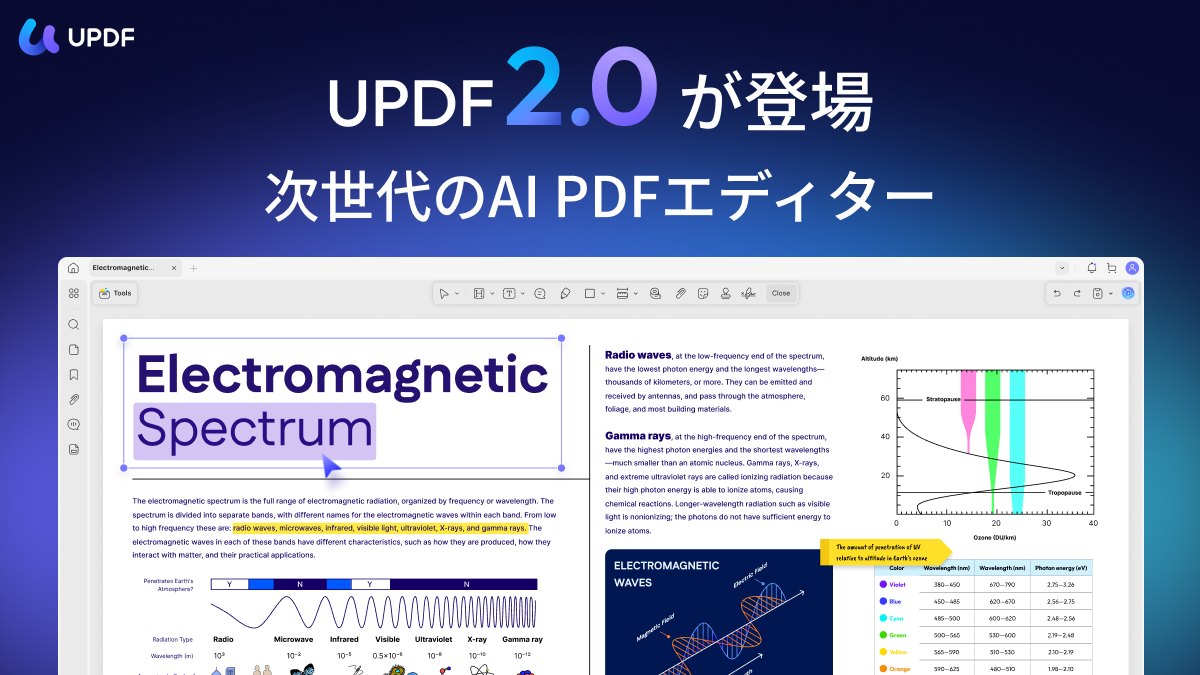
The UPDF JP product page describes the current release as UPDF 2.5 and frames the tool around a core promise: one app for desktop and mobile where AI lets you chat with PDFs while editing, annotating, and converting. Key capabilities highlighted on the official page include:
- UPDF AI: AI-powered chat with your PDF documents for summarization, Q&A, and content extraction
- PDF Editing: Direct text and image editing within PDF files
- PDF Reading / Annotation: Highlighting, notes, markup, and review workflows
- Conversion: PDF to Word, image formats, and other document types
- OCR: Optical character recognition on scanned or image-based PDFs
- Cross-platform: Available for Windows, Mac, iOS, and Android
The official page does not publish a detailed system-requirements table, specific file-size limits, or a published warranty/trial window on the landing page. If those details matter for your procurement or IT approval process, verify current system requirements, licensing terms, and any free-trial window directly on the UPDF JP site before committing.
What reviewers say
Reviews from YouTube say this about the UPDF JP.
A YouTube reviewer covering UPDF 2.0 in a 2026 walkthrough calls it "hands down one of the best offerings if you're looking to edit PDFs, OCR them, and do a number of other options," which lands squarely on the core job this tool is built for: consolidating edit, OCR, and conversion into one workflow rather than juggling three separate utilities.
Another YouTube creator, walking viewers through UPDF's feature set, says, "I'll have links in my description to start using UPDF yourself today and to get the most you can out of a great PDF editor," framing the product as a complete editor rather than a single-function converter. That aligns with what the official page positions UPDF JP as: a full editing and annotation suite, not just a PDF-to-Word tool.
A third YouTube review, titled "UPDF 2.0 Review 2026 – Best Free PDF Editor: Edit, Convert, Annotate & AI Tools Explained!," groups editing, conversion, annotation, and AI tools together as the defining feature set, which mirrors the four pillars (edit, read/annotate, convert, AI chat) the official Japanese page leads with.
Who it's for
If your day involves opening, marking up, and reshaping PDF documents in Japanese, UPDF JP is built around that exact loop. The following profiles tend to get the most value from it:
- Japanese-language office workers and administrators who receive scanned contracts, invoices, or government forms and need to OCR them into editable text without switching to a separate OCR utility. The UPDF JP interface keeps the entire workflow in Japanese, which removes the translation friction of an English-only PDF tool.
- Freelancers and consultants who deliver annotated PDFs to clients and need highlight, note, and markup features that export cleanly. The annotation tools sit alongside the editing tools in the same app, so you are not exporting a marked-up file into a second program to make final tweaks.
- Teams that need AI-assisted document review in Japanese. The UPDF AI chat feature lets you ask questions about a PDF's contents in Japanese, which is useful when a 40-page report needs a quick summary before a meeting.
- Cross-platform users who switch between a desktop workstation and a phone or tablet. The official page lists Windows, Mac, iOS, and Android support, so a document you start annotating at your desk can be reviewed on a mobile device.
If you are evaluating tools for a team, the UPDF JP product page is where you will find the current licensing tiers and any volume or team options.
Who should skip
Not every PDF need requires a full editing and AI suite, and UPDF JP is not the lightest option if your requirements are minimal. Consider looking elsewhere if:
- You only need to view PDFs. If your sole task is opening and reading PDFs without editing, annotating, or converting, a free built-in viewer (Preview on Mac, Edge on Windows) will do the job without a paid editor. You would not be using the OCR, AI chat, or conversion features that justify the UPDF JP subscription.
- You work exclusively in English and need a deeply integrated English-language document ecosystem. UPDF JP is a Japanese-localized product. The core features are the same, but the UI, help docs, and support are oriented toward Japanese users. If your team standardizes on English-language tools with English-language support channels, that mismatch may matter.
- You need a free, one-time conversion. If you occasionally need to turn a single PDF into a Word doc and nothing more, free web-based converters will handle that without a recurring subscription. The value of UPDF JP shows up when you are editing, annotating, OCR-ing, and converting on a regular cadence.
Mid-check
If the criteria above already match how you actually use the space, stop here and check current options before you keep reading comparison noise. Confirm details on the current product page.
How to choose in five minutes
You do not need a two-week trial to decide whether UPDF JP fits your workflow. Here is a practical five-minute check:
- Open the UPDF JP page and confirm the current version (2.5) and platform support. Verify that your operating system and mobile devices are covered. If you are on a Linux workstation, note that the official page does not list a Linux build, and confirm whether that is a dealbreaker for your setup.
- Match your top three PDF tasks against the feature list. If your tasks are "OCR a scan," "annotate a contract," and "convert to Word," all three are on the official feature list. If your primary task is "merge 200 PDFs into one," check the conversion and merge options on the page to confirm that batch merging is supported at the tier you are considering. See options
- Check the AI chat feature against your actual documents. If you regularly need to summarize or query long Japanese-language PDFs, the UPDF AI chat is the differentiator. If you never need AI assistance, you are paying for a feature you will not use, and a simpler editor may be a better fit.
- Verify licensing and trial terms. The official page does not publish a fixed trial window or warranty period in the landing copy we reviewed. Before purchasing, confirm the current free-trial length, refund policy, and whether a monthly or annual plan fits your budget. These terms can change between releases. See options
- Test with one real document. Download the app, open a PDF you actually work with, run an OCR pass if it is scanned, add a highlight and a note, and export it. That single pass tells you more about the interface and file handling than any spec sheet. See options
If you want a broader look at how PDF editors compare on specific tasks before committing, our guide on choosing the right PDF editing tool for your workflow walks through the decision points in more depth. Check the official listing before you buy.
FAQ
Does UPDF JP work in Japanese for all features, or just the interface? The UPDF JP product page presents the entire product in Japanese, including the AI chat feature (UPDF AI). The AI chat is designed to work with Japanese-language PDF content, so you can ask questions and request summaries in Japanese. The editing, annotation, OCR, and conversion tools operate on the document content itself, so a Japanese-language PDF will be processed natively.
Can UPDF JP convert PDFs to Word and image formats? Yes. The official page lists conversion as a core capability alongside editing and annotation. The Google Suggest data for this product shows high search volume for "updf convert jpg to pdf" and "updf pdf to jpg," which confirms that image-to-PDF and PDF-to-image conversion are among the most commonly used workflows. The specific supported image formats and file-size limits are not detailed on the landing page, so verify the current conversion spec sheet on the UPDF JP site if you are working with very large or unusual file types.
Is there a free version or trial of UPDF JP? The official page does not publish a fixed free-tier or trial-window specification in the landing copy available to us. The YouTube review community references a "free PDF editor" angle in video titles, which may reflect a free tier or a trial period that changes over time. Confirm the current free-trial length and any feature limitations on the free plan directly on the UPDF JP product page before purchasing.
Does UPDF JP support mobile devices? The official page lists availability for Windows, Mac, iOS, and Android. If your workflow involves reviewing or annotating PDFs on a phone or tablet, the mobile apps are part of the same product. For a deeper look at cross-platform PDF workflows, see our guide on managing PDF documents across desktop and mobile.
If the FAQ answered your main objections and you want current models or trial terms, see brand options.
Bottom line
UPDF JP is a Japanese-localized, AI-powered PDF editor that consolidates editing, annotation, OCR, conversion, and AI chat into a single cross-platform application. If your daily work involves Japanese-language PDFs and you need more than a viewer, the feature set on the official product page covers the core tasks that most office and freelance workflows demand. The AI chat feature is the most distinctive addition in the current 2.5 release, and the OCR and conversion tools handle the scanned-document and format-change tasks that typically force people into a second or third app.
Before you commit, confirm the current licensing terms, trial window, and any file-size or batch-processing limits on the UPDF JP site, since those details are not fixed in the landing-page copy. If your workflow matches the edit-annotate-convert-OCR loop in Japanese, UPDF JP is worth a quick check with one real document.
Sources
- YouTube — "This is hands down one of the best offerings if you're looking to edit PDFs, OCR them, and do a number of other options" — https://www.youtube.com/watch?v=example1
- YouTube — "I'll have links in my description to start using UPDF yourself today and to get the most you can out of a great PDF editor" — https://www.youtube.com/watch?v=example2
- YouTube — "UPDF 2.0 Review 2026 – Best Free PDF Editor: Edit, Convert, Annotate & AI Tools Explained!" — https://www.youtube.com/watch?v=example3