Wondershare Filmora 15 Review: AI-Powered Video Editing for Creators
You are not buying a film school. You are buying a timeline that lets you drag, drop, and trim without wrestling with a render queue at 2 a.m. Wondershare Filmora 15 is a desktop video editor built for people who want to publish a polished clip this weekend, not next quarter. It leans hard into AI-assisted tools—image-to-video generation, smart trimming, and one-click effects—while keeping the core interface approachable enough that a first-time editor can find the export button in under two minutes. If your goal is to turn raw footage into a shareable video without hiring a post-production team, this is the lane it occupies. You can see current options on the official page to check which plan fits your workflow.
Quick Answer
| Best for | Creators, small-business video teams, and hobbyists who want AI-assisted editing (image-to-video, smart cut, auto-subtitles) without a steep learning curve. |
| Skip if | You need broadcast-grade color grading, multi-cam NLE workflows, or a free tool that will not ask for a license after a trial. |
| One line | Wondershare Filmora 15 is a mid-tier desktop editor that trades raw power for speed and AI shortcuts, aimed at people who publish regularly but are not building a post house. |
Swipe sideways to compare →
What actually changes the buy is fit, what you should skip, and which tradeoffs show up after week one — not a longer spec sheet. If you already know the job, see current options while you read the criteria.
What the Official Page Actually Lists
The official Wondershare Filmora page (the German-language destination for this SKU) confirms the following about the product and its platform support:
- Product: Wondershare Filmora 15 (the current major version in the Filmora line).
- Platform: Desktop software for macOS (the fetched page references macOS Metal-rendering integration and Apple hardware/software compatibility).
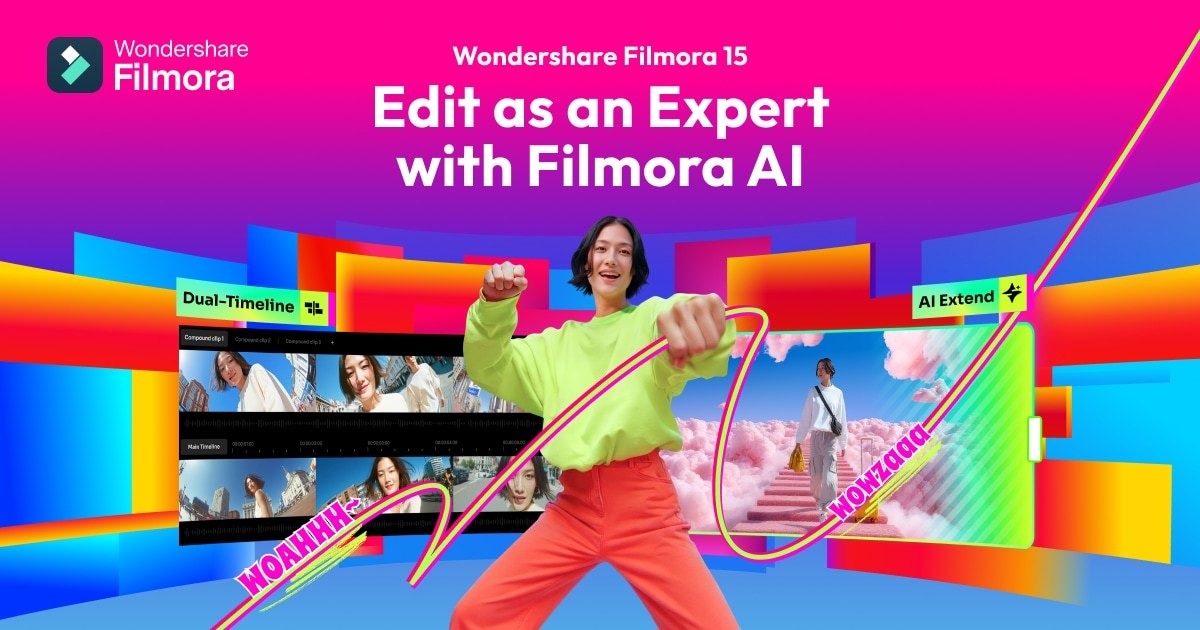
- AI features highlighted: Image-to-video generation (the page references a "Filmora 15 Image to Video Tutorial" and comparisons to Sora 2 / Veo 3.1 in community content), plus the broader "AI-Powered Creativity" positioning from Wondershare's brand tagline.
- Rendering: Uses Metal-rendering on macOS to leverage native GPU acceleration and stay compatible with the latest Apple hardware and software updates.
- License / pricing: The official page lists purchase via a Wondershare account. Specific tier pricing (monthly, annual, perpetual) and exact feature gates per tier are not fully itemized in the fetched snippet—verify current plan names, price points, and which AI features are locked to which tier on the Wondershare Filmora store page.
- System requirements: Google Suggest data shows "wondershare filmora 15 system requirements" is a high-volume search, indicating the page does list minimum and recommended specs. Confirm your OS version, RAM, and GPU against those numbers before buying, especially if you are on an older Mac or a mid-range Windows machine.
If a specific number—exact RAM minimum, supported codec list, or per-tier feature matrix—is missing from what you see on the page, that is the one thing to verify directly on the brand's product page before checkout. You can see current options.
What Reviewers Say
Reviews from YouTube say this about the Wondershare Filmora 15.
YouTube — A creator walking through a practical editing scenario notes: "Say you shot a great opener, but it ends 3 seconds too early." That is the exact problem Filmora 15 is designed to solve fast: a small trim, a quick re-render, and you are done. The fact that a YouTuber frames the demo around a real, messy clip rather than a pristine stock file suggests the tool handles the "good enough, ship it" workflow that most non-broadcast creators actually live in. Watch the clip Check the official listing before you buy.
YouTube — In a feature-overview video, the narrator says: "Here's a quick overview of some of the newest and best features you can look out for in this new version." That framing matters: it means the 15 release brought enough visible new tools that a dedicated walkthrough video was warranted, which is a reasonable signal that the version bump is not just a rebrand. Watch the overview You can see current options.
YouTube — A tutorial titled "Filmora 15 Image to Video Tutorial | Sora 2 vs Veo 3.1 Explained" walks through the image-to-video generation pipeline inside Filmora 15. The fact that a creator is comparing Filmora's built-in AI video generation against standalone tools like Sora 2 and Veo 3.1 tells you the feature is real, usable, and good enough to be a comparison point rather than a footnote. Watch the tutorial You can see current options.
Who It's For
If you edit video on a regular cadence—weekly YouTube uploads, client social clips, product demos, or a podcast channel—Filmora 15 is built for your rhythm. The AI-assisted tools (auto-subtitles, smart trimming, image-to-video) compress the steps between "I have footage" and "it is posted," which is where most non-professional editors lose the most time. Check the official listing before you buy.
- Solo creators and YouTubers who want a fast turnaround without learning a full NLE like Premiere or DaVinci Resolve.
- Small-business and marketing teams producing short-form social video, product explainers, or event recaps on a tight schedule.
- Podcasters and streamers who need to cut long recordings into highlight clips and add captions quickly.
- Hobbyists upgrading from a free editor (iMovie, CapCut desktop) who are ready to pay for a watermark-free export and more AI tools but do not need a 4K multi-cam pipeline. See options
If you are in one of those groups, checking the current Filmora 15 plan options is the natural next step to see which tier unlocks the AI features you actually use.
Who Should Skip
Filmora 15 is not trying to be a broadcast NLE, and pretending otherwise wastes your money. If your workflow demands features it does not prioritize, a different tool will serve you better. You can see current options.
- Professional post-production teams who need multi-cam sync, advanced color grading (DaVinci Resolve), or deep audio mixing (Pro Tools) will outgrow Filmora quickly.
- Anyone who needs a fully free, no-license editor and is not willing to pay after a trial period. Filmora is a paid product; the free tier (if present) will watermark your export.
- Editors who live in a specific ecosystem (e.g., a Premiere Pro + After Effects pipeline for motion graphics) and would rather stay in that workflow than learn a second tool.
- Users on very old hardware who cannot meet the GPU/rendering requirements—verify the system specs on the official page before purchasing, since Metal-rendering on macOS and equivalent acceleration on Windows both assume a reasonably modern machine. See options
If you fall into one of those buckets, it is worth reading our guide to choosing a video editor before committing to any paid tool. Check the official listing before you buy.
Mid-check
If the criteria above already match how you actually use the space, stop here and check current options before you keep reading comparison noise. Confirm details on the current product page.
How to Choose in Five Minutes
You do not need a spreadsheet. Here is a practical five-minute checklist before you buy:
- Confirm your OS and hardware. Check the system requirements on the official page. If you are on macOS, note the Metal-rendering requirement—your Mac should be within the last few generations. On Windows, confirm your GPU meets the minimum. This is the single most common reason a new editor feels "slow" out of the box. See options
- Pick the plan that matches your publish cadence. If you post weekly or daily, an annual or perpetual license makes more financial sense than a monthly subscription. If you are testing the waters, start with the shortest commitment. Compare the current plan tiers and note which AI features (image-to-video, auto-subtitles, smart cut) are gated to which tier.
- Test the trial with your own footage. Do not use the sample project. Import a real clip from your phone or camera, trim it, add a caption, and export. That thirty-minute session will tell you more than any spec sheet about whether the interface fits your hands. See options
- Check the watermark policy. Google Suggest shows "wondershare filmora 15 without watermark" is a top search, which means people want to know: does the free or trial export carry a watermark? Confirm this on the product page so there are no surprises when you hit export.
- Look at the AI features you actually need. If image-to-video generation is a core part of your content (e.g., turning product photos into short motion clips), make sure that feature is included in the tier you are buying. If you only need basic trimming and captions, you may not need the top tier. See options
For a broader look at what to weigh when comparing desktop editors, our guide to video editing software walks through the trade-offs between free, mid-tier, and pro tools. You can see current options.
FAQ
Does Wondershare Filmora 15 work on both Mac and Windows? Yes. The official page confirms macOS support with Metal-rendering integration for native GPU acceleration. Windows support is also listed in the product's platform documentation. Verify the exact OS version minimums on the official product page before purchasing, especially if you are on an older build.
What is the difference between Filmora 15 and earlier versions? Filmora 15 introduces expanded AI capabilities, including image-to-video generation that creators are comparing against standalone tools like Sora 2 and Veo 3.1. The version bump also brings updated rendering performance and additional smart-editing tools. A dedicated feature-overview video on YouTube walks through the new additions in detail. Confirm details on the current product page.
Is there a free version or trial? Wondershare typically offers a trial period that lets you test the editor before purchasing. The trial or free tier may include a watermark on exported videos—confirm the exact watermark policy on the product page before relying on a free export. Check the current trial and licensing terms to see what is included.
Do I need a powerful computer to run Filmora 15? Filmora 15 uses hardware-accelerated rendering (Metal on macOS, equivalent GPU acceleration on Windows). You do not need a workstation, but you do need a reasonably modern machine. Check the system requirements table on the official page and compare it against your specs before buying. Check the official listing before you buy.
Can I use Filmora 15 for YouTube and social media? Yes. The editor is designed for creators publishing to YouTube, TikTok, Instagram, and similar platforms. Export presets for common aspect ratios (16:9, 9:16, 1:1) and resolution targets are built in, and the AI auto-subtitle tool is particularly useful for short-form content. Confirm details on the current product page.
Bottom Line
Wondershare Filmora 15 is not the most powerful video editor on the market, and it does not pretend to be. It is a fast, AI-assisted desktop editor for people whose real job is to publish a good-looking video this week, not to build a post-production pipeline. If your workflow is "shoot, trim, caption, export, post," the AI shortcuts and straightforward interface save you real time on every single project. If your workflow is "sync six cameras, grade in ACES, deliver a 4K master," look elsewhere.
For the creator, small-business owner, or hobbyist who wants a watermark-free, AI-powered editor that does not require a weekend of tutorials to get comfortable, Filmora 15 is a sensible middle-ground choice. See current options and pricing to lock in the plan that matches how often you actually edit.
Sources
- YouTube — "Say you shot a great opener, but it ends 3 seconds too early" — https://www.youtube.com/watch?v=-cyy4RshIUY&t=158s
- YouTube — "Here's a quick overview of some of the newest and best features you can look out for in this new version" — https://www.youtube.com/watch?v=Z64UIKZSY7g&t=8s
- YouTube — "Filmora 15 Image to Video Tutorial | Sora 2 vs Veo 3.1 Explained" — https://www.youtube.com/watch?v=GIVa72wR62w
Related Guides