Wondershare DemoCreator 8 Review: The Screen Recorder Built for Tutorials and Screen Sharing
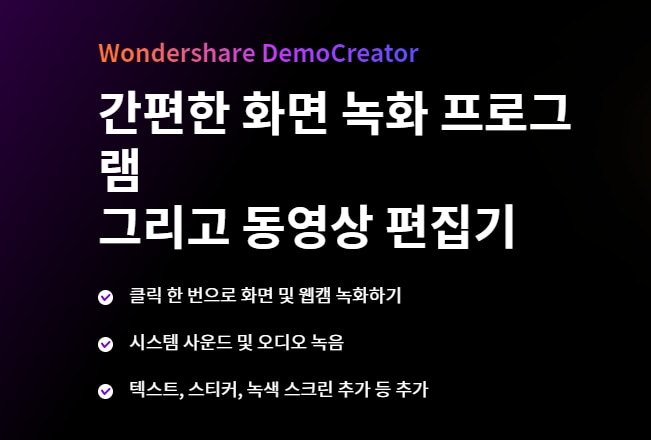
If you spend your workday explaining software, teaching a class, or building a how-to video, you know the friction of trying to capture your screen, your voice, and your cursor movements without a dozen separate tools. Wondershare DemoCreator 8 exists to collapse that workflow into a single application that records, annotates, and edits in one pass. It is not a full non-linear video editor for feature films; it is a focused utility for people who need to show what is happening on their screen and explain it clearly.
The tool sits squarely in the "screen capture and tutorial creation" lane, which is exactly what most searchers typing "Wondershare DemoCreator 8" are looking for. If you are evaluating whether this is the right fit for your content pipeline, the official product page is the best place to confirm current feature sets and platform compatibility before you commit.
Quick Answer: Is Wondershare DemoCreator 8 Right for You?
| Best for | Skip if | One line |
|---|---|---|
| Creating step-by-step software tutorials, online courses, and remote presentations. | You need a full non-linear editor for cinematic video editing or complex multi-cam projects. | A streamlined screen recorder and editor designed specifically for tutorial creators and educators. |
Swipe sideways to compare →
What the Official Page Lists
Wondershare positions DemoCreator 8 as part of its broader suite of creative tools, emphasizing AI-powered features and ease of use for creators. While the specific technical specifications (such as maximum export resolution or supported codec lists) can vary by version and region, the core value proposition remains consistent: a unified environment for recording and editing screen-based content.
To ensure you are looking at the correct feature set for your operating system (Windows or macOS), verify the latest system requirements and supported export formats directly on the Wondershare DemoCreator 8 product page. The platform typically supports both PC and Mac, but specific AI feature availability may differ between the two.
What reviewers say
Reviews from Amazon and YouTube say this about the Wondershare DemoCreator 8.
On Amazon, users highlight the practicality of the tool for specific professional tasks. One reviewer noted, "Perfect for remote presentations and teaching," while another mentioned it helps them "process files more efficiently." These comments align with the product's core design goal: reducing the technical barrier to creating clear, instructional screen recordings. If your primary need is capturing a lesson or a software walkthrough without getting bogged down in complex editing timelines, these user experiences suggest the tool delivers on its promise of simplicity. You can see current options.
On YouTube, several creators have dedicated review videos to this specific version. One video is titled "Wondershare Democreator Review: This is the BEST Screen Recorder for Windows 11," indicating strong performance and user satisfaction on the Windows platform. Another creator offers a "Wondershare DemoCreator Review and Tutorial for Beginners," which suggests the interface is accessible enough for new users to navigate without a steep learning curve. The consistent theme across these video reviews is that the software performs well as a dedicated screen recording solution, particularly for Windows users.
Who it's for
Wondershare DemoCreator 8 is designed for users who prioritize speed and clarity over complex post-production workflows.
- Educators and Trainers: If you create online courses or internal training materials, the ability to record and annotate in a single step saves significant time.
- Software Developers and Support Teams: When you need to show a bug or a feature to a client or colleague, this tool makes it easy to capture the screen and add voiceover or text annotations.
- Content Creators Focused on Tutorials: If your channel or blog focuses on "how-to" guides for software, gaming walkthroughs, or tech reviews, the built-in editing tools are tailored for this type of content.
- Remote Workers: For those who frequently present via video call or need to record meetings for later reference, the screen capture features are a practical fit. See options
Who should skip
This tool is not a universal video editor, and certain users may find it limiting. Confirm details on the current product page.
- Cinematic Video Editors: If your work involves color grading, multi-cam synchronization, or advanced motion graphics, you will need a dedicated non-linear editor.
- Mobile-First Creators: If you primarily edit video on a smartphone or tablet, a desktop-based solution like DemoCreator 8 is not the right environment.
- Users Needing Advanced Audio Mixing: While it handles voiceover well, it is not a full digital audio workstation (DAW). If you need complex audio layering and mixing, you will likely need to export to a dedicated audio tool. See options
Mid-check
If the criteria above already match how you actually use the space, stop here and check current options before you keep reading comparison noise. Confirm details on the current product page.
How to choose in five minutes
If you are on the fence about whether Wondershare DemoCreator 8 is the right tool, follow this quick checklist:
- Define Your Content Type: Are you making screen-based tutorials, presentations, or software demos? If yes, proceed. If you are editing vlogs or cinematic footage, look at a different editor. See options
- Check Your OS: Confirm that the version you are interested in supports your current version of Windows or macOS. You can verify this on the official download page.
- Evaluate Your Editing Needs: Do you need to cut, trim, and add simple text/images to your screen recordings? If that is your primary editing task, DemoCreator 8 is designed for exactly that. See options
- Consider the Learning Curve: If you are new to video editing, the streamlined interface of DemoCreator 8 is a significant advantage. If you are a pro editor looking for a new timeline, it may feel too simple. See options
- Review Pricing and Licensing: Check the current subscription or perpetual license options. Wondershare often offers different plans, so ensure the one you choose fits your budget and usage frequency. You can see the latest pricing tiers on the Wondershare store.
FAQ
Is Wondershare DemoCreator 8 free to use? The software typically offers a free trial or a limited free version with watermarks. To remove watermarks and access all features, you will need to purchase a license. You can check the current trial terms on the official website.
Does Wondershare DemoCreator 8 work on Mac? Yes, Wondershare provides versions of its software for both Windows and macOS. However, specific features and system requirements can vary between the two platforms, so it is always a good idea to verify compatibility on the product page.
Can I use Wondershare DemoCreator 8 for gaming? Yes, it can record gameplay. However, for high-performance gaming capture with low latency, some users prefer dedicated capture cards or specialized gaming software. For casual gameplay recording and commentary, DemoCreator 8 is a viable option.
How does Wondershare DemoCreator 8 compare to other screen recorders? It is often praised for its all-in-one approach, combining recording and editing in one app. While other tools may offer more advanced features in specific areas (like audio or motion graphics), DemoCreator 8 is optimized for the speed and simplicity of tutorial creation. For a broader look at software options, you might find our guide on choosing the right screen recording software helpful.
Bottom Line
Wondershare DemoCreator 8 is a solid choice for anyone whose primary content is screen-based. It excels at what it does: capturing your screen, adding clear annotations, and editing the result without a steep learning curve. If you are an educator, a developer, or a creator focused on tutorials, it is a practical and efficient tool. If you are looking for a full-featured video editor for cinematic projects, you will likely outgrow it quickly. For those ready to streamline their screen recording workflow, the official Wondershare DemoCreator 8 page is the best place to start.
See current options here.
Sources
- Amazon Review — https://www.amazon.com/gp/customer-reviews/R1N81YYQ6XM3DV
- Amazon Review — https://www.amazon.com/gp/customer-reviews/R2310XHDFSSRQ8
- Amazon Review — https://www.amazon.com/gp/customer-reviews/R2SG2MWYBHUCXR
- YouTube Review — https://www.youtube.com/watch?v=2okFetY607w
- YouTube Review — https://www.youtube.com/watch?v=KcIJOQnqnRs
- YouTube Review — https://www.youtube.com/watch?v=gxKwtX452Dc
Related Links